
Autocad Title Block Template: CAD Setup Guide
An AutoCAD Title Block Template helps keep drawings consistent, readable, and ready for review, plotting, construction, manufacturing, or client approval. A title block is more than a border at the edge of a sheet. It carries project data, drawing numbers, revision details, scale, dates, sheet information, and approval fields.
If the template is built correctly, every new drawing starts with the same standards instead of forcing users to rebuild sheet settings manually. ProSoftStore helps CAD buyers choose software that supports accurate 2D documentation, repeatable layouts, and clean drawing production.
Quick Check
Compare cad drawing software at ProSoftStore before setting up title blocks, layouts, drawing templates, and repeatable CAD documentation workflows.
AutoCAD Title Block Template Basics
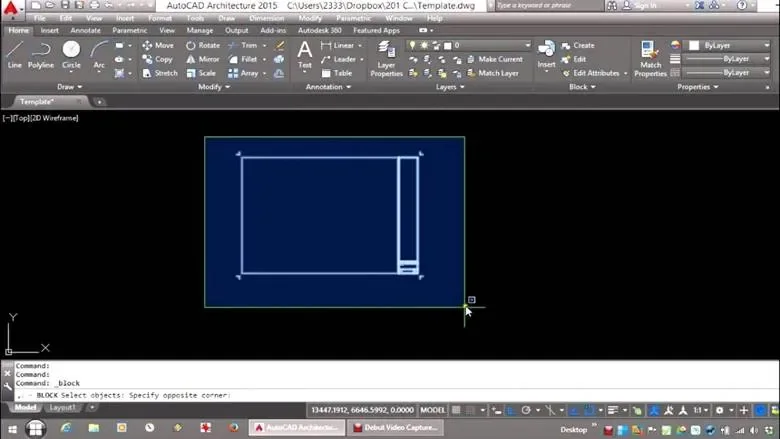
An AutoCAD Title Block Template should usually be built around AutoCAD layouts, paper space, drawing templates, title block blocks, attributes, fields, and page setup. Autodesk explains that AutoCAD drawing template files use the .dwt extension and can store styles, settings, layouts, and title blocks. Autodesk also notes that CAD managers often maintain drawing templates to keep standards and styles consistent across an organization.
| Title block element | Purpose | Why it matters |
|---|---|---|
| Border | Defines the printable sheet area | Helps keep sheet output consistent |
| Project name | Identifies the project | Reduces confusion across drawing sets |
| Drawing title | Describes the sheet content | Helps reviewers find the right drawing |
| Drawing number | Controls sheet identity | Supports indexing, referencing, and revisions |
| Revision block | Tracks drawing changes | Helps teams understand what changed |
| Scale | Shows drawing scale | Reduces layout and plotting mistakes |
| Date fields | Tracks issue or plot dates | Supports document control |
| Checked/approved fields | Shows responsibility | Improves accountability |
| Attributes | Stores editable title block data | Makes repeated sheet data easier to manage |
| Fields | Automates sheet set or drawing data | Reduces manual entry errors |
A good title block template should make repeated documentation easier. It should not be so crowded that the sheet becomes hard to read, and it should not be so minimal that important project data is missing.
Why an AutoCAD Title Block Template Matters?
A title block template matters because CAD drawings are usually shared with other people. Engineers, architects, designers, fabricators, contractors, inspectors, clients, and reviewers all rely on drawing identification. A clean title block tells them what the drawing is, who made it, what revision it belongs to, and how it should be read.
Autodesk’s paper-space guidance says that when preparing a drawing for output, users typically create the model in model space, access paper space, set page settings, insert a title block unless the drawing template already contains one, create layout viewports, set view scale, add annotations, and output the layout.
That sequence matters. If the title block is built in the wrong place, scaled incorrectly, or disconnected from page setup, plotting becomes unreliable. A repeatable title block template keeps the drawing workflow controlled from the first sheet.
For a broader drafting context, the drafting software and mechanical CAD separation helps explain why 2D documentation workflows differ from mechanical assembly modeling.
Title Block in Model Space vs Paper Space
A common mistake is placing the title block in model space when the drawing workflow really needs it in paper space. Autodesk explains that model space is where users work in a limitless drawing area and draw at 1:1 scale, while paper space is used to set up layouts with title blocks, notes, and layout viewports that display scaled views of model space.
For most plotted sheet workflows, the drawing geometry stays in model space and the title block stays in paper space. This lets the model remain at true scale while the layout controls sheet size, viewport scale, border position, and plotted output.
| Space | Best use | Title block role |
|---|---|---|
| Model space | Create drawing geometry at real-world scale | Usually not the best place for sheet borders |
| Paper space | Prepare plotted layouts and sheets | Best place for title blocks and viewports |
| Layout tab | Organize sheet output | Holds border, title block, viewport, notes |
| Viewport | Shows scaled model views | Lets one sheet show one or more model views |
For most CAD offices, the safest title block workflow is layout-based. The sheet becomes a plotted document, and the viewport shows the real model at the required scale.
What to Include in an AutoCAD Title Block Template?
An AutoCAD Title Block Template should include the fields your team actually uses. A manufacturing drawing may need part number, material, finish, tolerance, scale, revision, and approval data. An architectural sheet may need project name, sheet title, sheet number, client, consultant, phase, issue date, and drawn/checked/approved initials.
A practical template may include:
| Field | Typical use |
|---|---|
| Project name | Identifies the job or client project |
| Sheet title | Describes the drawing content |
| Sheet number | Identifies the sheet in the set |
| Drawing number | Controls drawing tracking |
| Revision | Records drawing change status |
| Date | Tracks creation, issue, or plot date |
| Scale | Shows drawing or viewport scale |
| Drawn by | Identifies the drafter or designer |
| Checked by | Identifies review responsibility |
| Approved by | Shows release responsibility |
| Company name | Identifies the issuing organization |
| Client name | Connects the sheet to the client |
| File name | Helps locate the CAD source |
| Sheet size | Confirms paper format |
| Notes area | Holds project-specific references |
The exact fields depend on the business. ProSoftStore helps buyers compare 2d cad drawing software options by how well they support documentation habits, plotting, layouts, and repeatable drawing standards.
Use AutoCAD Templates for Standards
A title block template should be part of a broader CAD standard. Autodesk says templates can store default settings, styles, layouts, units, layers, dimension styles, text styles, layout viewports, page setups, and title blocks.
That means the template should not only contain the title block. It should also carry the drawing environment needed for consistent documentation. Layers, lineweights, text styles, dimension styles, linetypes, plot styles, viewport layers, and page setups all affect the final sheet.
Autodesk’s template guidance also says that using predefined templates can help enforce drawing standards and save time when creating new drawings. It specifically lists having a title block available to insert as a useful drawing setting to include in a template.
For a wider category view, the CAD workflow type definitions can help buyers understand why drafting CAD, modeling CAD, and manufacturing CAD require different template logic.
Use Blocks for Title Block Geometry
A title block is usually created as a block because repeated sheet data should stay organized. Autodesk says blocks are commonly used for symbols, parts, detail views, and title blocks, and that block data can be stored in block attributes.
Using a block helps keep the border, labels, attribute positions, and title block geometry together. If the title block is only loose lines and text, it becomes easier for users to move, delete, stretch, or corrupt part of the sheet identity.
A practical block-based title block should include:
| Block item | Recommendation |
|---|---|
| Border lines | Keep them clean and on a controlled layer |
| Fixed labels | Use standard text style and consistent placement |
| Editable data | Use attributes instead of loose text |
| Revision table | Keep enough space for real project history |
| Logo area | Use carefully so plotting remains reliable |
| Sheet data | Keep near the lower-right or office-standard location |
| Plot boundary | Match the intended paper size and page setup |
For drawing-heavy teams, a clean title block block is one of the most useful reusable CAD assets.
Use Attributes for Editable Sheet Data
Attributes make title blocks more useful because they let the same block hold different sheet information. Autodesk explains that an attribute is a label or tag that attaches data to a block, and that attributes can store values such as part numbers, comments, names, or other data. Autodesk also notes that more than one attribute can be associated with a block as long as each attribute uses a different tag.
For title blocks, attributes are useful for fields such as drawing number, sheet title, revision, project name, drawn by, checked by, approved by, date, scale, and discipline. When the title block is inserted, the user can enter values instead of editing loose text.
| Attribute idea | Example tag |
|---|---|
| Project name | PROJECT_NAME |
| Drawing title | DRAWING_TITLE |
| Sheet number | SHEET_NO |
| Drawing number | DWG_NO |
| Revision | REV |
| Drawn by | DRAWN_BY |
| Checked by | CHECKED_BY |
| Approved by | APPROVED_BY |
| Date | ISSUE_DATE |
| Scale | SCALE |
Autodesk says attribute definitions include a tag, a prompt displayed when the block is inserted, and a default value used when a variable value is not entered.
Use Fields for Automatic Title Block Data
Fields can make title block data more reliable because they reduce manual entry. Autodesk’s AutoCAD blog explains that fields can include sheet set data in drawing title blocks so that title block data stays current as sheet and sheet set information changes. It also notes that field codes can cover common data such as current date, sheet number, and drawing name.
This is useful when many sheets share project data. Instead of typing the same project name, sheet number, or drawing information manually, users can connect the title block to sheet set fields or drawing properties.
Autodesk’s contextual-field documentation also explains an important rule: contextual fields inside a block, such as a title block, should be inserted as attributes. Autodesk gives CurrentSheetNumber as an example of a field that can be used as an attribute in a title block.
This detail matters because title block automation can fail if fields are placed incorrectly. A good template should use attributes and fields deliberately, not randomly.
Title Block Template and Sheet Sets
Sheet sets can make title block templates more powerful. Autodesk says title blocks can display sheet set or project information and can update when that information changes. Autodesk also says a title block may be a block with fields that include project information from project attributes and is typically placed in a sheet template or sheet drawing.
Sheet sets are most useful when a project contains many sheets. Instead of updating every title block manually, the sheet set can help coordinate shared data such as sheet number, sheet title, project name, issue information, or custom properties.
A practical sheet-set title block workflow should:
| Step | Purpose |
|---|---|
| Create sheet set properties | Store shared project data |
| Build attributes in the title block | Create editable data locations |
| Insert fields into attribute definitions | Connect attributes to sheet set data |
| Save the updated template | Reuse the title block across sheets |
| Test with multiple sheets | Confirm fields update correctly |
| Avoid manual overwrites | Keep automated data reliable |
The best workflow depends on the firm’s standards. A single-sheet drawing may not need sheet-set automation, but a multi-sheet project often benefits from it.
Page Setup and Plotting Matter
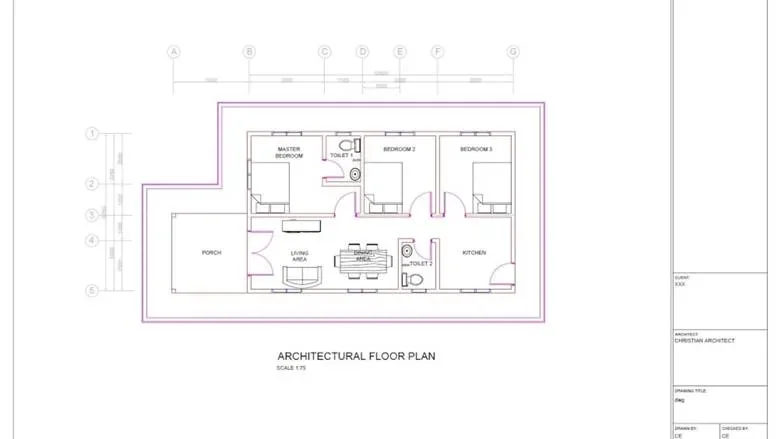
An Autocad Title Block Template is only useful if it plots correctly. Autodesk says the paper-space output workflow includes specifying page settings such as output device, paper size, drawing area, output scale, and drawing orientation before inserting a title block or using a template that already contains one.
That means the title block should match the intended page setup. If the paper size, plot scale, printable area, and border do not align, users may see clipped borders, shifted plots, incorrect margins, or inconsistent PDFs.
A practical title block template should define:
| Plot setting | Why it matters |
|---|---|
| Paper size | Keeps the border aligned with the sheet |
| Plot area | Controls what prints |
| Plot scale | Keeps layout output at the correct paper scale |
| Plot style table | Controls lineweights and plotted appearance |
| Orientation | Prevents landscape/portrait mismatch |
| Viewport scale | Controls model view scale |
| Viewport layer | Lets users hide viewport frames when plotting |
| PDF output setting | Supports consistent document delivery |
This is why title blocks should be tested by plotting, not only viewed on screen.
Title Block Template for Architecture
Architectural title blocks often carry more project and sheet coordination data than simple technical drawings. They may include project name, address, client, architect, consultant, sheet title, sheet number, issue status, revision history, scale, north arrow references, and project phase.
For architecture and residential design workflows, the title block must support multiple sheet types: plans, elevations, sections, details, schedules, site plans, and construction notes. A weak title block can make a drawing set difficult to review even when the linework is accurate.
For building-design documentation context, the home-plan documentation workflow context is relevant. Architectural software decisions often depend on how drawings, title blocks, layouts, and project documentation are produced.
Title Block Template for Construction Workflows
Construction drawings must be clear because they move through many hands. A title block template should help identify the current sheet, issue date, revision status, discipline, project phase, and responsible party.
For construction workflows, useful title block fields may include:
| Field | Construction use |
|---|---|
| Project number | Connects drawings to the job record |
| Sheet discipline | Separates architectural, structural, MEP, and civil drawings |
| Issue status | Shows permit, bid, construction, or revision issue |
| Revision number | Tracks changes after release |
| Consultant name | Shows responsibility by discipline |
| Drawing scale | Helps field interpretation |
| Sheet list reference | Supports drawing set navigation |
For project teams choosing software around construction deliverables, the construction sheet workflow planning helps connect title block setup with broader documentation requirements.
Title Block Template for Mechanical Drawings
Mechanical drawings need title blocks that support part identification, revision control, materials, finish notes, tolerances, drawing scale, and approval responsibility. A mechanical title block often includes information that supports manufacturing, inspection, purchasing, and change control.
This is different from a general layout title block. A part drawing may require part number, material, finish, quantity, mass, projection method, tolerance standard, and revision table data. A title block that works for architecture may not be enough for mechanical engineering.
For buyers comparing drafting and mechanical design workflows, the mechanical parametric CAD comparison context helps explain why drawing documentation changes when product models, assemblies, and revisions are involved.
Title Block Template for Manufacturing and CAM
Manufacturing drawings often move from CAD documentation into CAM, CNC programming, inspection, and shop-floor production. The title block should help connect the drawing to the correct part, revision, material, finish, and manufacturing notes.
AutoCAD may define the drawing geometry and title block, but CAM software handles toolpaths, machining strategy, and CNC output. For shops, it is important not to confuse drawing documentation with machine programming.
The CAD geometry to shop programming stages article can help clarify where drawing setup ends and manufacturing programming begins.
For title block design, the manufacturing takeaway is simple: make the sheet identity unambiguous. A shop should not have to guess which revision, material, finish, or part number applies.
Title Block Template for Analysis and Engineering Records
Some engineering projects include calculations, simulations, test results, and analysis reports. The title block does not replace those records, but it can reference the drawing, revision, and design state that analysis supports.
For example, a drawing title block may identify the part revision that was analyzed. A calculation report may then reference that drawing number and revision. This keeps the design documentation and engineering evidence aligned.
For software-role context, the engineering calculations and drawing records distinction helps show why calculation tools and CAD documentation tools serve different jobs.
Title Blocks and Parametric CAD Workflows
AutoCAD title block templates are usually drawing-centered. Parametric CAD systems often generate drawings from parts and assemblies, but they still need title block information, drawing numbers, revisions, and approval fields.
This means the title block concept remains important even when the model is 3D. The CAD system may be different, but the documentation problem remains the same: each issued sheet needs identity, status, and traceability.
For category context, the drafting CAD versus parametric CAD roles helps explain why AutoCAD-style title blocks belong to a drafting/documentation workflow while parametric CAD belongs to a product-model workflow.
Title Blocks for Advanced Engineering CAD
Advanced engineering CAD workflows may use model-based definition, 3D annotations, drawings, revision-controlled product structures, and manufacturing data. Even then, title blocks remain important when formal drawing sheets are issued.
A high-control product design team may use 3D models for product definition and 2D sheets for supplier communication, inspection packages, service documentation, or archived records.
The high-control product CAD indicators help buyers understand when a title block is only one part of a larger product-definition workflow.
Title Blocks and Direct Editing Workflows
Imported geometry, supplier CAD, and direct-edit workflows can create documentation challenges. A drawing may be based on a model that came from another CAD system, a cleaned-up file, or a simplified body.
In that case, the title block should show enough information to track the drawing source, revision, and approval status. If the CAD file origin is important, the office may include a source file field, reference model field, or notes area.
For geometry preparation context, the geometry repair and direct-edit workflow helps show why documentation should track more than the visible drawing.
Title Block Template for 3D Printing
A 3D printing project may not always need a formal drawing, but functional printed parts often benefit from clear documentation. A title block can identify the part name, revision, print orientation notes, material, tolerance reference, finish requirement, or related CAD file.
For simple hobby prints, this may be unnecessary. For engineering prints, fixtures, prototypes, tooling aids, or customer parts, drawing identity becomes more important.
For additive workflows, the low-cost printable model design options and the modeling file and print-prep split help separate CAD documentation from slicer preparation.
If a user expects the printer package to handle all design documentation, the printer-bundled design tool expectations can help clarify what still needs to be created in CAD.
Title Block Template and Software Cost
The cost of CAD software should be judged partly by documentation efficiency. A tool that supports reusable title blocks, clean layouts, fields, attributes, plotting, and templates can save time on every drawing.
Autodesk says templates can help users start drawings with settings already in place, and template files can help enforce office standards.
A poorly configured workflow can create hidden costs: repeated manual edits, wrong sheet numbers, inconsistent title blocks, plotting errors, missing revision fields, and cleanup time.
For purchase planning, the CAD template and license planning factors can help buyers compare software cost against everyday documentation work.
Title Block Template and CAD Market Fit
The need for title blocks depends on the type of CAD work. Drafting-heavy teams need them constantly. Visual modelers may need them only when producing drawing sheets. Mechanical CAD users may need them when releasing drawings from models. CAM users may need shop documentation but not necessarily architectural-style title blocks.
For a broad market view, the CAD market category breadth helps explain why CAD software selection should start with workflow. Title block needs are very different for architecture, mechanical design, construction, CAM, and 3D printing.
For broader 3D design decisions, the 3D design software output criteria can help buyers decide whether the final output is a model, drawing, presentation, printable file, or manufacturing record.
Common Title Block Template Mistakes
Many title block problems come from weak setup rather than weak drafting skill. Autodesk’s template guidance warns that opening an existing drawing, saving it with a new name, and deleting geometry can be time-consuming and can lead to outdated or broken standards. Autodesk recommends templates as a better way to start drawings with predefined settings.
Common mistakes include:
| Mistake | Problem it causes |
|---|---|
| Title block in model space | Scaling and plotting confusion |
| Loose text instead of attributes | Inconsistent sheet data |
| No revision area | Poor change tracking |
| No page setup | Unreliable plotting |
| Wrong paper size | Cropped or shifted sheets |
| Manual sheet numbers | Errors across drawing sets |
| Unmanaged fonts | Plotting differences between workstations |
| No template testing | Problems discovered during deadlines |
| Overcrowded title block | Hard-to-read drawings |
| No office standard | Every user builds sheets differently |
A good template should be tested with real project sheets before it becomes the office standard.
How to Build a Practical AutoCAD Title Block Template?
A practical workflow for an AutoCAD title block template is:
Decide the sheet sizes your office uses.
Create a layout for each sheet size.
Set page setup for paper size, plot area, orientation, and plot style.
Draw or import the border in paper space.
Create the title block geometry as a block.
Add attributes for editable sheet data.
Add fields where automatic sheet data is useful.
Create or confirm layers, text styles, and dimension styles.
Save the file as a .dwt template.
Create a new drawing from the template and test plotting.
Autodesk says a layout template can be imported from a DWG or DWT file, and when a layout is based on a template, page setup and paper-space objects such as viewports are used in the new layout while model-space objects are not imported.
This makes layout templates useful when a team wants consistent sheets without copying old project files.
How ProSoftStore Helps CAD Buyers?
An Autocad Title Block Template is a small part of CAD work, but it affects every issued drawing. A reliable template supports consistent layouts, correct sheet identity, cleaner revisions, better plotting, and faster drawing setup.
ProSoftStore helps buyers compare CAD software by real documentation needs: 2D drafting, layout setup, attributes, fields, title blocks, plotting, mechanical drawings, construction sheets, manufacturing documentation, and 3D model output.
If your team needs reliable drawing production, ProSoftStore can help you check current AutoCAD versions and pricing and choose a CAD license that fits your documentation workflow.
FAQs
What is an Autocad Title Block Template?
An AutoCAD Title Block Template is a reusable CAD template that contains sheet layout information, title block geometry, drawing fields, attributes, page setup, and other standards needed to create consistent drawing sheets. Autodesk says AutoCAD .dwt drawing template files can store styles, settings, layouts, and title blocks.
Should an AutoCAD title block be in model space or paper space?
For most plotted sheet workflows, the title block should be in paper space on a layout. Autodesk explains that model space is used for drawing at 1:1 scale, while paper space is used to set up layouts with title blocks, notes, and viewports that display scaled views of model space.
What information should be in an AutoCAD title block?
An AutoCAD title block should include the information needed to identify and control the sheet. Common fields include project name, drawing title, sheet number, drawing number, revision, date, scale, drawn by, checked by, approved by, client name, company name, and issue status. The exact fields should match the office standard and project type.
How do attributes help an AutoCAD title block?
Attributes let a title block block store editable sheet data. Autodesk defines an attribute as a label or tag that attaches data to a block and explains that attributes can store values such as names, comments, part numbers, or other data. In a title block, attributes are useful for sheet numbers, titles, revisions, dates, and approval fields.
How do fields help an AutoCAD title block?
Fields help automate title block data. Autodesk explains that AutoCAD fields can include sheet set data in title blocks so data stays current as sheet and sheet set information changes. Fields can also be used for common information such as current date, sheet number, and drawing name.
Can an AutoCAD title block template be reused across drawings?
Yes. AutoCAD templates are designed for reuse. Autodesk says drawing template files store default settings, styles, layouts, and title blocks, and that CAD managers often maintain templates to keep standards consistent across an organization.
Why does my title block not plot correctly?
A title block may not plot correctly if the paper size, page setup, plot area, plot scale, printable margins, border size, or layout orientation is wrong. Autodesk’s paper-space output workflow includes specifying page settings before inserting or using a title block and then creating viewports, setting scale, adding annotations, and outputting the layout.
What is the best way to start a title block template?
The best way to start is to create a clean drawing template instead of copying an old project file. Autodesk notes that copying old drawings and deleting geometry can lead to outdated or broken standards, while templates with predefined settings can help enforce office standards.