
Cheap CAD Software for 3D Printing
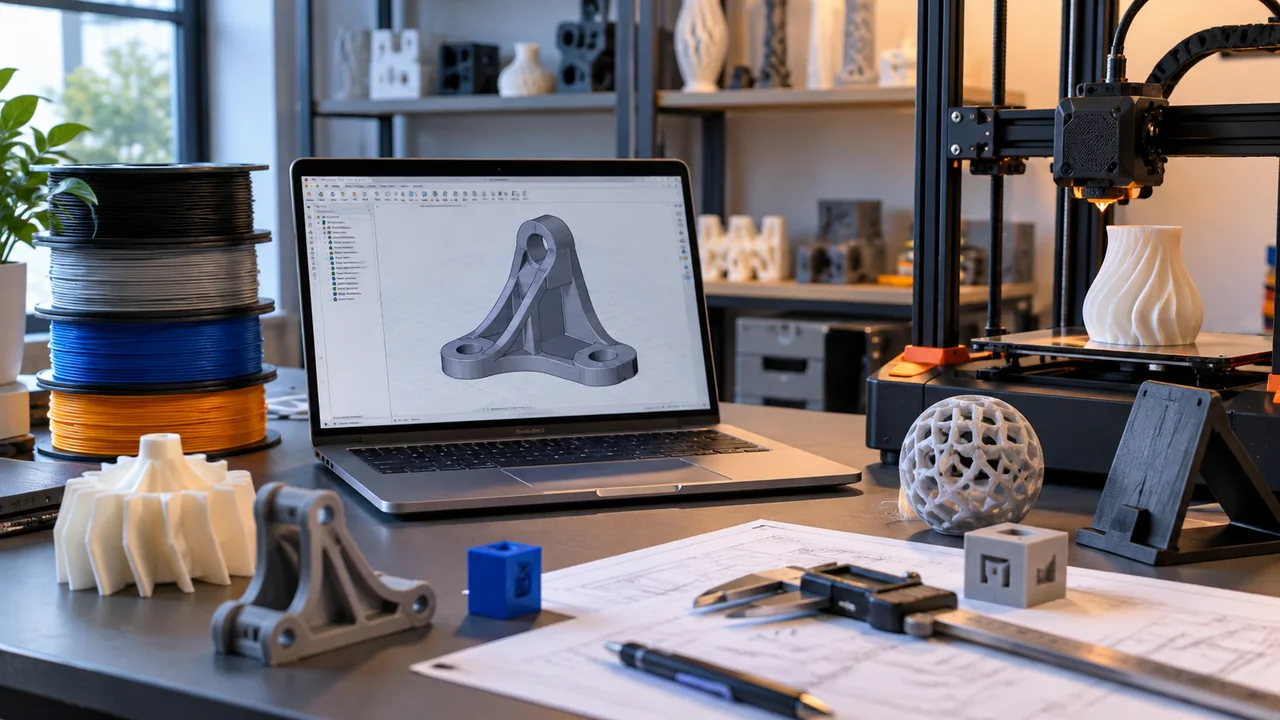
Finding cheap CAD software for 3D printing is not simply a matter of choosing the lowest-priced or free application. The right choice depends on what you intend to model, how accurately dimensions must be controlled, whether designs need repeated revisions, what file formats the workflow requires, and whether the software license permits the intended use.
A simple desk organizer, a dimensioned replacement bracket, an engineering prototype, and a sculpted figurine do not require identical modeling tools.
Some users need straightforward shape creation. Others need sketches, constraints, editable feature history, assemblies, drawings, or specialist engineering tools.
The practical goal is therefore to find the lowest-cost CAD option that satisfies the complete 3D-printing design workflow—not simply the cheapest software available.
Quick Scenario Table
| Scenario | CAD approach to consider | Why it fits | What to verify |
|---|---|---|---|
| Simple boxes, holders and tags | Beginner/simple modeling | Quick geometry creation | Export options and license terms |
| Brackets, adapters and enclosures | Parametric CAD | Controlled dimensions and revisions | Constraints and file compatibility |
| Personal hobby projects | Free or low-cost CAD | Lower software expense | Usage restrictions and available features |
| Figurines and decorative pieces | Mesh/sculpting software | Better suited to freeform shapes | Mesh quality and export workflow |
| Mechanical assemblies | Professional mechanical CAD | Parts, relationships and engineering workflows | Required capabilities and interoperability |
| Confidential commercial projects | Suitable professional/private CAD | Licensing and project privacy | Commercial rights and data storage |
If you are unsure which modeling category applies, ProSoftStore's guide to the four types of CAD software provides useful background before comparing individual applications.
The table also highlights an important point: there is no universal best CAD software for 3D printing. The appropriate tool depends on the type of printable model and the broader workflow.
CAD Versus Slicer: Understand the Difference First
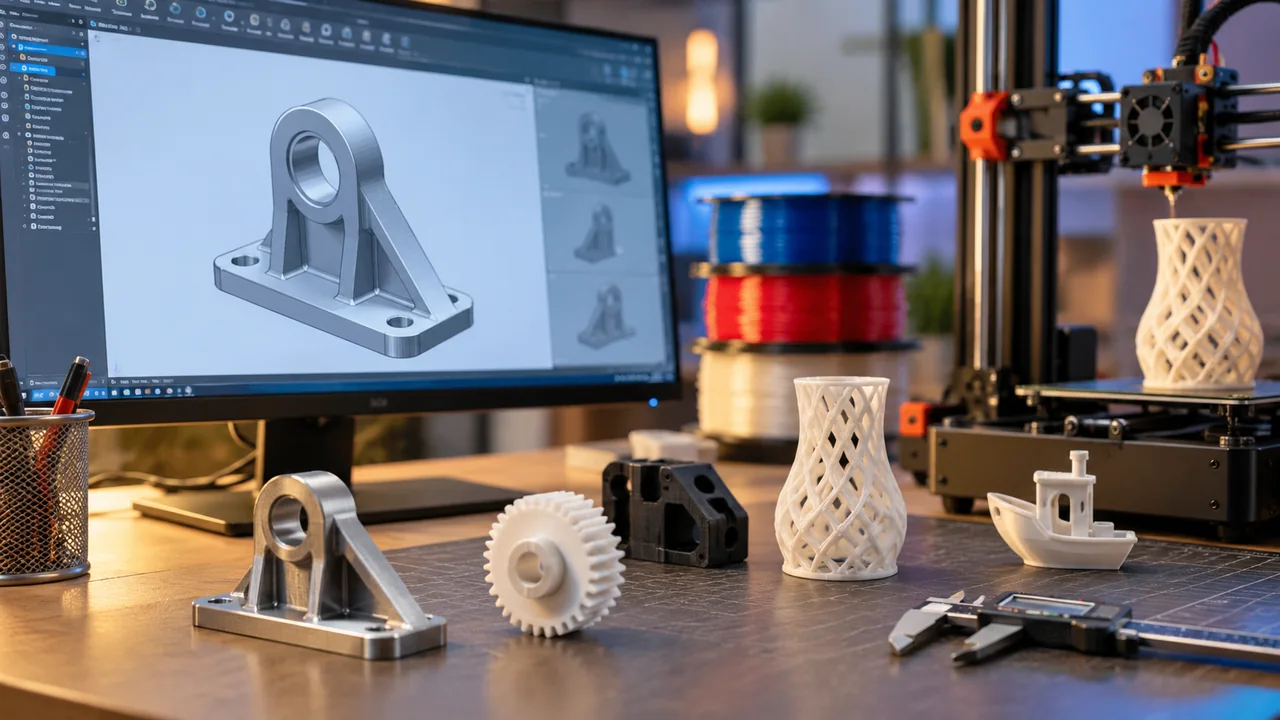
CAD and slicing software usually perform different jobs in a 3D-printing workflow.
CAD creates and edits the model
CAD or 3D-modeling software is used to define the object's geometry. Depending on the software, that can involve:
- dimensional sketches;
- constraints;
- solid features;
- surfaces;
- polygon meshes;
- assemblies;
- direct geometry editing;
- sculpting.
The design stage determines what the object is.
A slicer prepares the model for printing
A slicer takes suitable geometry and prepares it for the selected printing process and machine.
Its functions can include:
- build orientation;
- layer height;
- supports;
- infill;
- shells or walls;
- print speeds;
- process-specific settings;
- machine-oriented toolpaths.
A simplified workflow is:
CAD/modeling → exported geometry → slicing → printer instructions
The detailed difference between CAD software and 3D-printing software is therefore important when choosing a budget design application.
A slicer may allow scaling, positioning, duplication, splitting, support generation, and sometimes limited geometry repair. Those capabilities should not be treated as a replacement for editable CAD.
For example, if a mounting hole is in the wrong position, an enclosure needs a new feature, or two parts need different clearances, the more controlled solution is normally to modify the source model.
The reverse is also important. Creating geometry in CAD does not automatically eliminate printer-specific preparation.
The exact workflow should always be verified for the CAD application, slicer, file format, and printer being used.
What Matters Beyond Price?
Searches for cheap CAD software for 3D printing naturally focus on affordability. However, purchase price is only one part of the decision.
Dimensional versus organic geometry
Start by asking whether the object is primarily dimension-driven or shape-driven.
Functional models such as:
- brackets;
- jigs;
- fixtures;
- adapters;
- spacers;
- enclosures;
- replacement components
often benefit from parametric CAD.
Parametric modeling allows important dimensions and geometric relationships to be controlled through sketches, constraints, and features.
Artistic or organic objects such as:
- figurines;
- characters;
- sculptures;
- terrain;
- decorative forms;
- cosplay components
may fit mesh modeling or sculpting workflows more naturally.
A mechanical solid and a sculpted character may both be called 3D models, but they are created and revised differently.
Editability
Consider what happens after the first print.
Suppose an enclosure opening must increase from 40 mm to 42 mm. A mounting pattern must move 3 mm. A wall needs to become thicker. Several connected features need to update together.
For repeatable functional revisions, structured dimensional control can become more important than the initial software cost.
File interchange
Do not assume every application or plan supports every file format.
STEP, IGES, STL, OBJ, 3MF, and native CAD files preserve different kinds of information.
For example, FreeCAD's current documentation lists formats including STEP, IGES, STL, OBJ and others. Its documentation describes STEP as supporting solid geometry and NURBS and distinguishes those CAD formats from mesh-oriented formats.
STL should not be treated as equivalent to an editable feature-based CAD model. It represents tessellated geometry rather than preserving the original parametric construction history.
Keep the editable design source whenever practical and create appropriate downstream exports from it.
Licensing
Free does not automatically mean suitable.
Autodesk currently states that Fusion for Personal Use is a limited version for qualifying home-based, non-commercial use. Autodesk also specifies eligibility conditions, including its current annual-revenue limit.
Onshape's Free plan is currently described as non-commercial, and its pricing page states that Free-plan documents are publicly accessible.
That means software cost must be considered alongside what the selected license actually permits.
Project privacy
Privacy deserves particular attention when a free cloud service is involved.
Onshape's current terms state that documents created by Free Plan users are public. Its current account documentation likewise says Free subscribers cannot create private documents.
That may be acceptable for learning or openly shared hobby designs. It requires a different decision for confidential prototypes, client files, NDA-controlled work, or unpublished intellectual property.
For broader cost considerations, see how much CAD software costs.
When Free or Low-Cost CAD Can Be Sufficient?
Free or inexpensive software can be perfectly reasonable when its capabilities and terms match the project.
Simple models
Basic modeling tools can suit:
- organizers;
- holders;
- labels;
- simple cases;
- classroom models;
- basic fixtures;
- concept objects.
If the geometry consists mainly of straightforward forms and only limited revision is expected, an advanced mechanical engineering suite may provide capabilities that the project never uses.
Personal parametric projects
Free parametric CAD can also support more structured functional designs.
FreeCAD currently describes itself as an open-source parametric modeler and lists support for numerous interchange formats, including STEP, IGES, STL and OBJ.
Fusion for Personal Use provides another route for qualifying personal projects, although its current license limits need to be evaluated before adopting it for a workflow. Autodesk describes it as a limited option for qualifying non-commercial users with reduced functionality compared with the commercial Fusion product.
Public collaborative hobby CAD
Onshape Free can be relevant when public cloud documents are acceptable and the work is non-commercial.
The key word is public.
Its current Free plan includes CAD tools, real-time collaboration and version control, but specifies non-commercial use and public documents.
Therefore, it should not automatically be selected for confidential projects merely because its modeling tools meet the geometric requirement.
Organic modeling
For artistic models, a mesh-oriented or sculpting application may fit the geometry more naturally than mechanical parametric CAD.
The determining question is not which category is universally better.
Ask instead:
Is the design controlled mainly by exact dimensions and relationships, or by visual form and surface shape?
That question usually narrows the software category considerably.
Functional and Mechanical Parts Benefit From Parametric Control
The requirements change when printed objects must fit other physical components.
Consider a replacement mounting bracket.
The design may depend on:
- exact hole spacing;
- fastener diameter;
- wall thickness;
- clearance;
- mounting angles;
- mating surfaces;
- surrounding components.
After a test print, one or more of those dimensions may need adjustment.
Parametric CAD lets designers build relationships into sketches and features so that revisions can propagate through the model more systematically.
The comparison of AutoCAD and SOLIDWORKS helps illustrate why precise CAD applications can still serve different purposes. Drawing-oriented workflows and feature-based mechanical modeling are not identical simply because both can create accurate geometry.
For more complex functional parts and assembly-based work, the mechanical product-design workflow becomes the more relevant frame: part relationships, drawings, validation, and broader engineering requirements begin to matter.
Imported geometry creates another requirement
Not every 3D-printing workflow begins with a clean parametric source model.
A user may receive:
- supplier geometry;
- an imported STEP file;
- a downloaded mesh;
- scan-derived geometry;
- a model without useful design history.
In those cases, direct geometry editing may become useful.
The article comparing SOLIDWORKS Premium and Ansys SpaceClaim provides additional context on the difference between history-based mechanical modeling and workflows centered on direct modification of imported geometry.
Neither method should be considered universally superior. The choice depends on how much original design intent exists and how the geometry must be revised.
When Professional CAD Is Worth Considering?
Professional CAD becomes worth considering when a concrete workflow requirement exceeds what a simpler or free tool provides.
Potential triggers include:
- complex assemblies;
- controlled engineering drawings;
- configuration management;
- advanced surfaces;
- structured revision workflows;
- specialist file interchange;
- engineering analysis;
- manufacturing documentation;
- collaboration requirements;
- confidential commercial work;
- commercial-use licensing requirements.
The key is to identify the requirement first.
Professional software is not automatically appropriate just because a project becomes important.
Likewise, free software is not automatically economical if its limitations create repeated rebuilding, unsuitable licensing, public-file exposure, or difficult collaboration.
Understanding higher-end mechanical CAD
When printable-part work expands into assemblies, drawings, validation, manufacturing connections, or controlled product-development workflows, the decision moves beyond low-cost model creation.
If Creo and SOLIDWORKS are genuinely on the shortlist, the Creo vs SOLIDWORKS comparison provides the narrower professional-mechanical next step.
Verification Checklist Before Choosing CAD
Before choosing a low-cost CAD tool, verify the exact plan or edition against the work you actually need to complete.
1. Model type and editability
Confirm whether the work is primarily dimensional/functional, organic, assembly-based, imported, or scan-derived, and whether future revisions need a structured editable source model.
2. License and commercial use
Check whether the selected plan permits the intended personal, educational, freelance, commercial, or company use. Do not assume a free tier permits commercial work.
3. Project privacy
Verify whether project files are local, private in the cloud, shared by choice, or public under the selected plan—especially for client work, confidential prototypes, or NDA-controlled designs.
4. Required formats and interoperability
Test the exact import/export workflow needed by your slicer, collaborators, customers, or other engineering applications rather than assuming universal file compatibility.
5. CAD-to-slicer workflow
Confirm that the CAD output enters the intended slicing workflow and keep the editable design source whenever practical. CAD and slicing remain different stages even when a product offers some overlap.
6. A realistic revision test
Create a representative model, then change a dimension, hole spacing, wall thickness, mating feature, or repeated pattern. This quickly shows whether the modeling approach fits the project.
7. Workstation requirements
Check that the exact software version is supported on the available operating system and hardware before treating a low purchase price as the lowest-cost option.
Natural Product and Solution Next Steps
The useful definition of cheap CAD software for 3D printing is the lowest-cost tool that satisfies the complete job.
Choose simple modeling when the geometry itself is simple.
Choose parametric CAD when dimensions, constraints, mating relationships, and repeated revisions drive the design.
Choose mesh or sculpting tools when organic shape and visual form are more important than feature-based dimensional control.
Move toward professional mechanical CAD when assemblies, documentation, commercial requirements, confidentiality, advanced geometry, specialist interchange, or engineering workflows make those capabilities relevant.
The transition should be driven by a specific requirement—not by the assumption that paid software is universally better than free software.
For projects moving toward controlled mechanical parts, assemblies, and product-development workflows, continue to Mechanical & Product Design to compare the broader professional workflow.
Compare the exact version, licensing terms, system compatibility, file workflow, modeling capabilities, and engineering functions against the work you actually need to complete.
That approach helps avoid both extremes: paying for functionality that never enters the workflow or choosing a free tool whose restrictions make it unsuitable for the intended project.
FAQs
Can Fusion for Personal Use be used for commercial work?
Autodesk currently describes Fusion for Personal Use as a limited option for qualifying home-based, non-commercial projects and sets current eligibility conditions for that license. Verify Autodesk's latest terms rather than assuming that a free plan permits commercial activity.
Are Onshape Free projects private?
Onshape currently describes its Free plan as non-commercial and says Free-plan documents are public. That makes the plan a different fit for confidential prototypes, client files, or unpublished intellectual property.
Do I need STEP, and is STL an editable CAD model?
The required format depends on the downstream workflow. STEP can preserve solid geometry for compatible CAD exchange, while STL is mesh-oriented and does not preserve the original feature-based parametric history. Keep the editable source design when future dimensional changes are expected.
Can CAD software replace a slicer?
That should not be assumed. CAD primarily creates and edits geometry, while a slicer prepares suitable geometry for a particular 3D-printing process and machine. Integrated capabilities vary, so verify the exact workflow you plan to use.
When should I move from free CAD to professional CAD?
Consider professional CAD when a specific requirement exceeds the current tool: for example, commercial-use restrictions, confidentiality, complex assemblies, controlled drawings, engineering analysis, advanced surfaces, specialist interoperability, or structured team workflows.